
1. Login to gmail.com
2. Goto Settings
4. Goto Section Check Email From Another Account and Add Email
5. Enter your Full Email Address and Click Next
6. Select POP3 Email Option and Click Next
7. Now enter Credentials like below. Don’t forget to enter full email address. Enter your passpor and Port to 110 and POP Server to pop3.stackmail.com.

8. Now go to section Send Mail As and click on Add Email Address
9. Enter Your Full Name and Full Email Address and Check the Option Treat as an Alias.
10. Enter SMTP Server as smtp.stackmail.com and Full Email Address and Your Email Password. Port to be 587. TLS Option to be Selected.
11. When you click Next you will receive a Confirmation Link in your Email. Click that link and Confirm.
12. Once done you will be able to send email using your Official Email from Gmail Like Below.
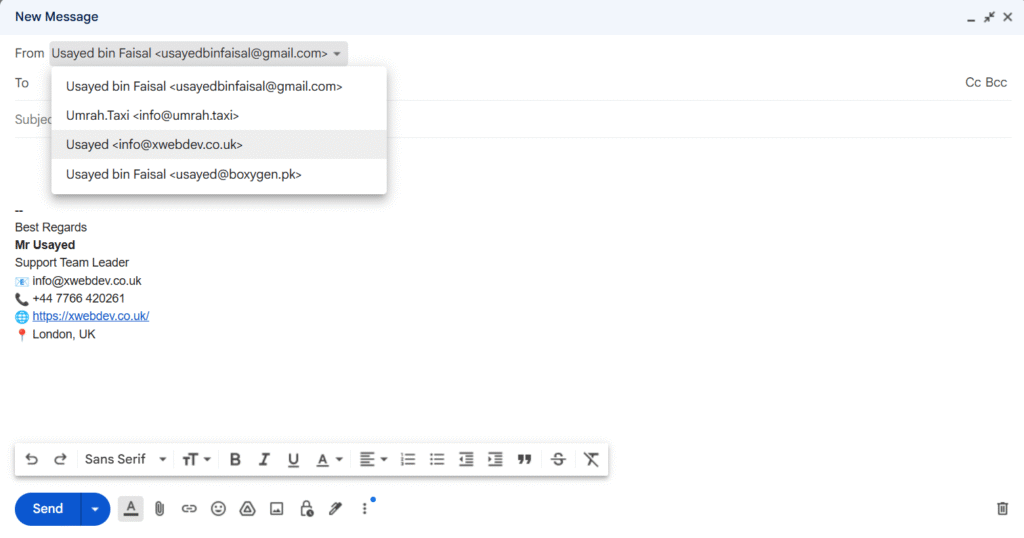
13. you can also create signature for your Official Email Account in the Settings as below.

0 Comments